This document details how to setup Signal K Server to read AIS and navigation data from a NMEA2000 (or any other) network and make it available on a WiFi network for use with popular phone / tablet apps like:
The Signal K Server does this by passing the data received from the configured Data Connections, through two plugins which transform it to NMEA0183 sentences, which are then transmitted on the WiFi network.
A Signal K Server:
All configuration is done from within the Signal K Server Admin UI. Open the Admin UI in your browser and complete the following steps.
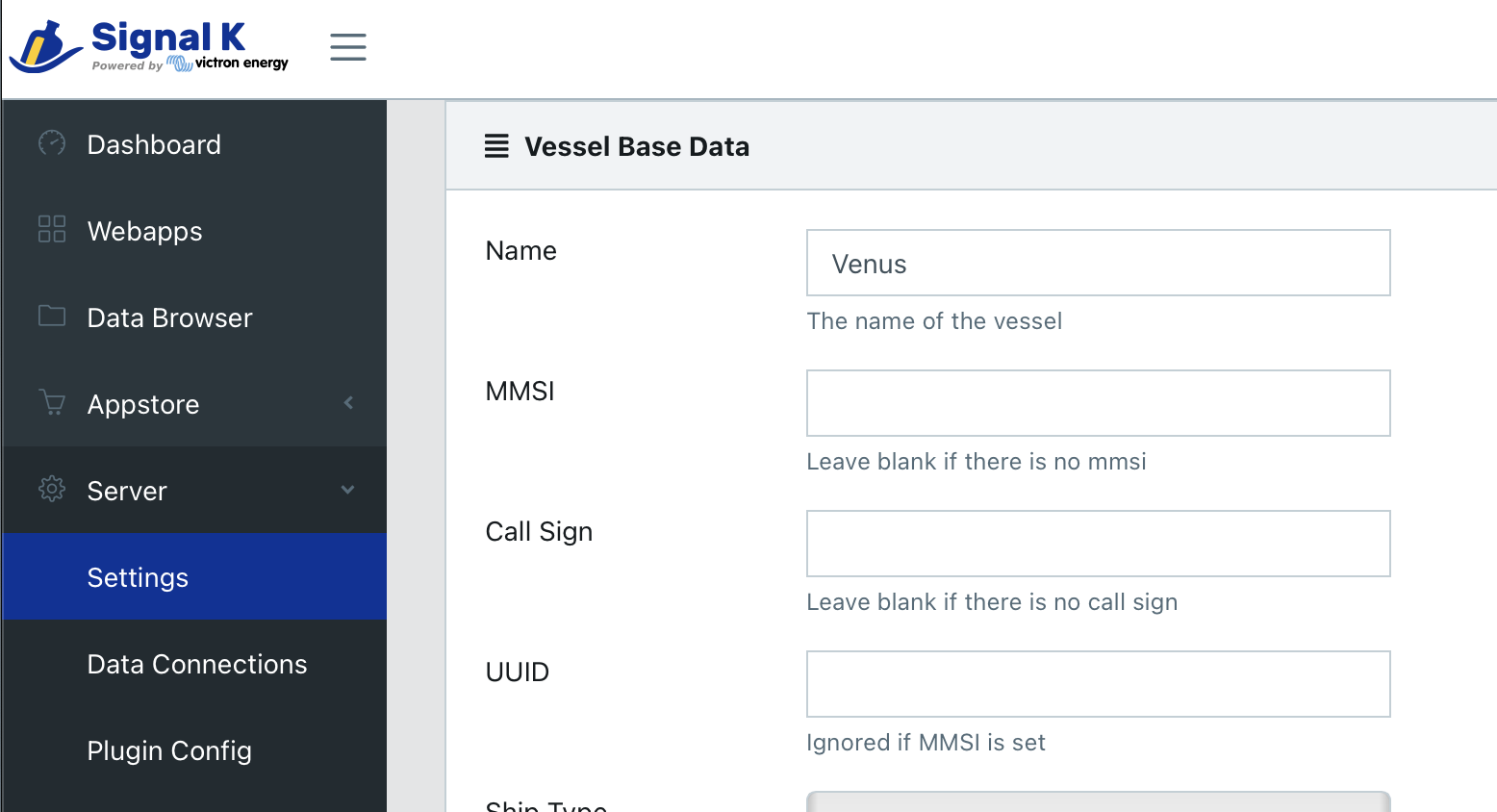
Select Server -> Settings from the menu.
In the Vessel Base Data section, enter the vessel's Length.
The following plugins are required to process and transform the received data to NMEA0183:
signalk-to-nmea0183 (documentation on npmjs)signalk-n2kais-to-nmea0183 (documentation on npmjs)Note: Starting with Signal K Server version 2.2.0 these plugins are pre-installed. It is recommended that these plugins be updated to the current version.
To install the plugins:
signalk-to-nmea0183plugin and click the install iconsignalk-n2kais-to-nmea0183 plugin and click the install iconNote: If the Restart button is not displayed in the upper right of screen, refer to Enabling Security for details.
To configure the plugins:
In the Admin UI, select Server -> Plugin Config from the menu.
Locate signalk-to-nmea0183 plugin.
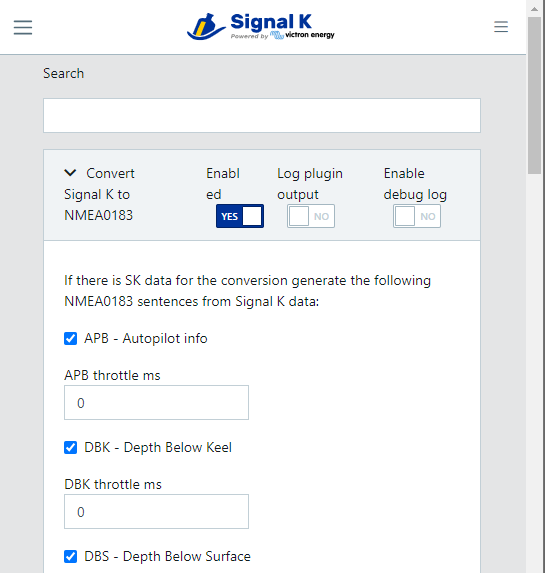
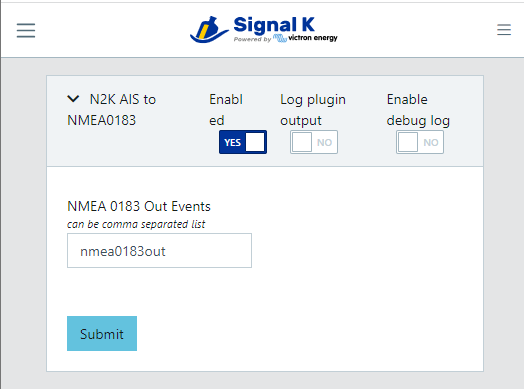
Locate signalk-n2kais-to-nmea0183 plugin. This plugin transmits all the AIS targets.
In the Admin UI, select Server -> Settings
Locate the Server Settings section
Ensure that NMEA 0183 over TCP (10110) is set to On
Click Save and Restart the Signal K Server.
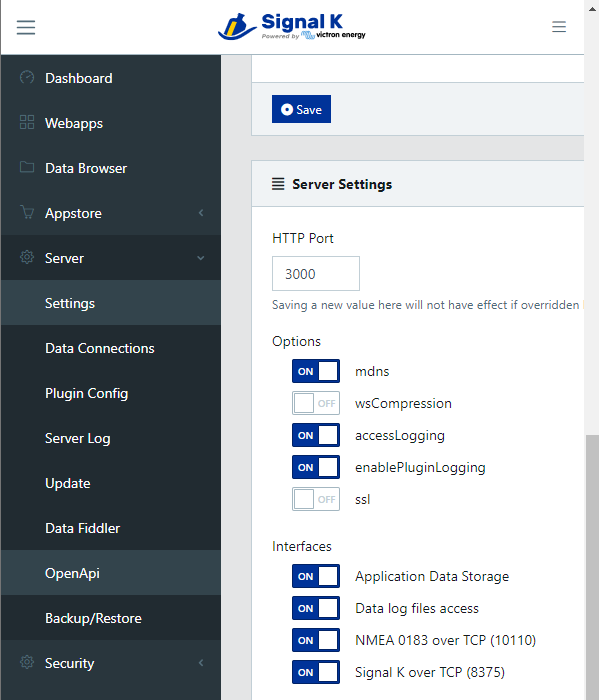
Once restarted the Signal K Server will transmit NMEA0183 sentences containing all your navigation and available AIS target data on the WiFi network on TCP port 10110.
Note: It is recommended that Signal K over TCP (8375) is set to On if you are using an app (e.g. Aqua Map) which supports the “Signal K over TCP” protocol as it is more feature rich.
Device apps can now be configured to connect to the NMEA0183 data stream from the Signal K Server.
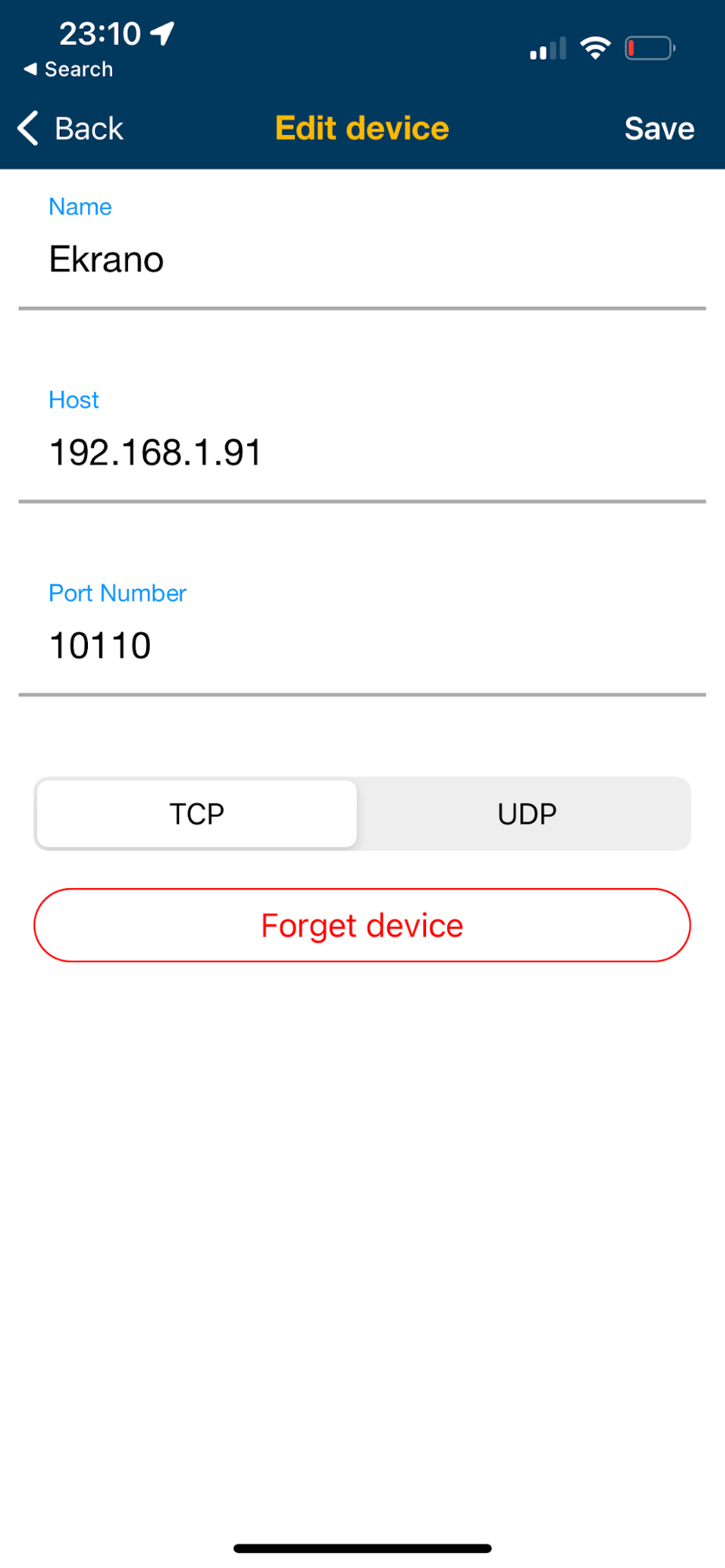
Following is an example of how to connect the Navionics boating app.
Open the menu
Select Paired devices and add a new paired device
Enter a name for the device e.g. MySignalK Server
In Host enter the IP address of the Signal K Server you configured in the steps above
In Port enter 10110
Select TCP
Click Save